
If you’re running automated marketing campaigns or need to programmatically create QR codes as part of a workflow — for example, generating a unique QR code for each Mailchimp subscriber — Qyrr’s REST API endpoint allows you to do exactly that: create a QR code post and generate the PNG image file entirely server-side, then get back a direct URL to use anywhere.
In this guide, we’ll walk through how to enable the feature, set up authentication, and make requests using PHP.
Table of Contents
Step 1: Enable the REST API
The REST API endpoint is disabled by default. To turn it on:
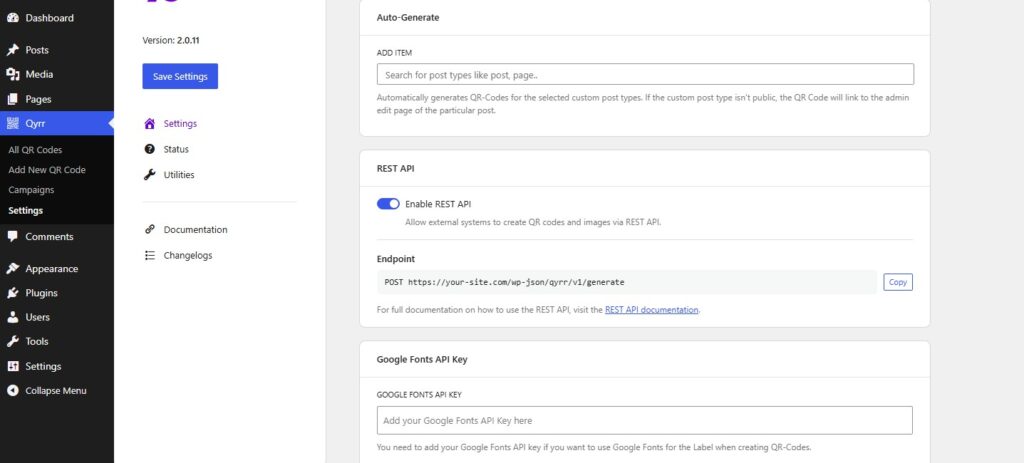
- Go to Qyrr > Settings from your WordPress dashboard.
- Find the REST API card and toggle Enable REST API on.
- Click Save Settings.
Once saved, the endpoint URL will appear below the toggle. You can copy it directly with the Copy button.
Step 2: Create a WordPress Application Password
The endpoint uses WordPress Application Passwords for authentication — a built-in WordPress feature (since WP 5.6) that lets you generate per-app credentials without exposing your main account password.
- Go to Users > Profile (or click the link in the REST API card in Settings).
- Scroll down to the Application Passwords section.
- Enter a name for your app and click Add New Application Password.
- Copy the generated password immediately — it will only be shown once.
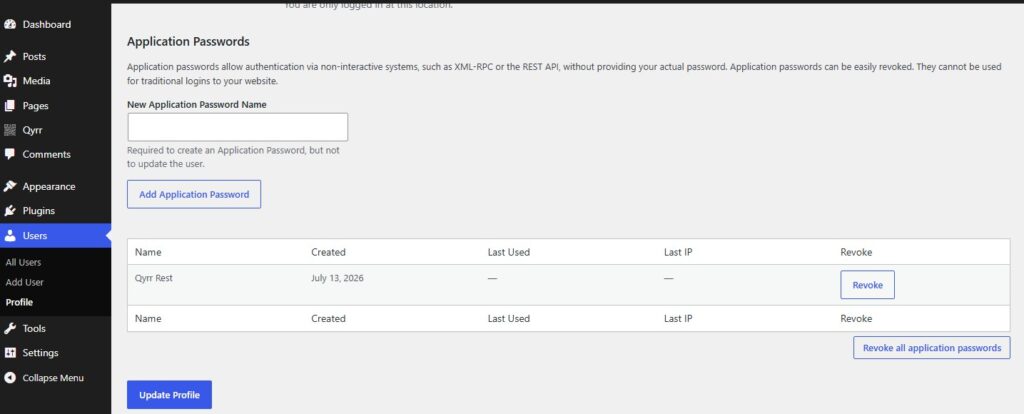
You’ll need two things for authentication: your WordPress username and the Application Password you just generated.
Step 3: Make a request from PHP
The endpoint accepts a POST request with a JSON body. The simplest way to call it from PHP (e.g. from functions.php, a plugin, or a custom script) is using WordPress’s built-in wp_remote_post().
Basic example — URL QR code
$username = 'your_wp_username';
$app_password = 'xxxx xxxx xxxx xxxx xxxx xxxx'; // Application Password from your profile

$response = wp_remote_post(
    'https://your-site.com/wp-json/qyrr/v1/generate',
    [
        'headers' => [
            'Authorization' => 'Basic ' . base64_encode( $username . ':' . $app_password ),
            'Content-Type'  => 'application/json',
        ],
        'body' => wp_json_encode( [
            'title'                => 'My QR Code',
            'source'               => 'url',
            'url'                  => 'https://example.com',
            'size'                 => 400,
            'fill-color'           => '#000000',
            'background-color'     => '#ffffff',
            'error-handling-level' => 'H',
        ] ),
        'timeout' => 30,
    ]
);

if ( is_wp_error( $response ) ) {
    error_log( 'QR generation failed: ' . $response->get_error_message() );
    return;
}

$body = json_decode( wp_remote_retrieve_body( $response ), true );

$post_id   = $body['post_id'];   // WordPress post ID of the new QR code
$image_url = $body['image_url']; // Direct URL to the generated PNG file
The response always contains two fields: post_id (the ID of the created QR code post in WordPress) and image_url (a direct, publicly accessible URL to the generated PNG image).
Email QR code
$body = wp_json_encode( [
    'title'  => 'Contact Email',
    'source' => 'email',
    'email'  => '[email protected]',
    'size'   => 400,
] );
Phone / WhatsApp QR code
// Phone
$body = wp_json_encode( [
    'title'  => 'Call us',
    'source' => 'phone',
    'phone'  => '+40721000000',
    'size'   => 400,
] );

// WhatsApp (phone without + or spaces)
$body = wp_json_encode( [
    'title'          => 'WhatsApp Support',
    'source'         => 'whatsapp',
    'phone'          => '40721000000',
    'whatsapp-text'  => 'Hello! I have a question.',
    'size'           => 400,
    'fill-color'     => '#25D366',
] );
SMS QR code
$body = wp_json_encode( [
    'title'    => 'SMS Promo',
    'source'   => 'sms',
    'phone'    => '+40721000000',
    'sms-text' => 'Hi! Here is your promo code: SAVE20',
    'size'     => 400,
] );
Free text QR code (Wi-Fi, vCard, etc.)
// Wi-Fi
$body = wp_json_encode( [
    'title'  => 'Office WiFi',
    'source' => 'text',
    'text'   => 'WIFI:T:WPA;S:NetworkName;P:Password123;;',
    'size'   => 400,
] );

// vCard contact
$vcard = implode( "\n", [
    'BEGIN:VCARD',
    'VERSION:3.0',
    'FN:John Doe',
    'TEL:+40721000000',
    'EMAIL:[email protected]',
    'END:VCARD',
] );

$body = wp_json_encode( [
    'title'  => 'John Doe Contact',
    'source' => 'text',
    'text'   => $vcard,
    'size'   => 500,
    'error-handling-level' => 'M',
] );
QR code with logo
You can overlay a logo on the QR code by passing the URL of an image already uploaded to your WordPress media library. Make sure to use error correction level H when adding a logo — this ensures the QR code remains scannable even with part of it covered.
$body = wp_json_encode( [
    'title'                => 'Branded QR Code',
    'source'               => 'url',
    'url'                  => 'https://example.com',
    'size'                 => 500,
    'fill-color'           => '#000000',
    'background-color'     => '#ffffff',
    'error-handling-level' => 'H',
    'logo-upload'          => 'https://your-site.com/wp-content/uploads/logo.png',
    'logo-size'            => 25, // percentage of QR size (5–50)
] );
QR code with label text
$body = wp_json_encode( [
    'title'       => 'Scan me QR',
    'source'      => 'url',
    'url'         => 'https://example.com',
    'size'        => 400,
    'label-text'  => 'Scan to visit our website',
    'font-color'  => '#333333',
    'quiet-zone'  => 3,
] );
All available parameters
| Parameter | Type | Default | Description |
|---|---|---|---|
title | string | QR Code | Name of the QR code post in WordPress |
source | string | required | url, email, phone, sms, whatsapp, text, post |
url | string | — | Required when source is url |
email | string | — | Required when source is email |
phone | string | — | Required when source is phone, sms, or whatsapp |
sms-text | string | — | Optional message body for SMS |
whatsapp-text | string | — | Optional pre-filled message for WhatsApp |
text | string | — | Required when source is text |
size | integer | 400 | Image size in pixels (minimum 100) |
fill-color | hex string | #000000 | Color of the QR code modules |
background-color | hex string | #ffffff | Background color |
error-handling-level | L / M / Q / H | H | Error correction level — use H when adding a logo |
quiet-zone | integer 0–10 | 0 | White border around the QR code |
logo-upload | URL | — | URL of an image from your own media library |
logo-size | integer 5–50 | 30 | Logo size as a percentage of the QR code size |
label-text | string | — | Text displayed below the QR code |
font-color | hex string | #000000 | Color of the label text |
Using the image URL in Mailchimp
The image_url returned in the response is a permanent, publicly accessible link to the generated PNG file. You can use it directly in any system that accepts an image URL.
A common workflow with Mailchimp looks like this:
- Use a Mailchimp webhook or a tool like Make (formerly Integromat) or Zapier to trigger a PHP script when a new subscriber is added.
- The script calls the Qyrr REST endpoint with the subscriber’s data (e.g. their unique URL or email) and receives back an
image_url. - That URL is then passed to the Mailchimp API to populate a merge tag or update the subscriber’s profile data.
- The email template uses that merge tag to display the personalized QR code image inline.
// Example: generate a QR code per subscriber and store the URL
function generate_qr_for_subscriber( string $subscriber_url, string $subscriber_name ): string {
    $username     = 'your_wp_username';
    $app_password = 'xxxx xxxx xxxx xxxx xxxx xxxx';

    $response = wp_remote_post(
        'https://your-site.com/wp-json/qyrr/v1/generate',
        [
            'headers' => [
                'Authorization' => 'Basic ' . base64_encode( $username . ':' . $app_password ),
                'Content-Type'  => 'application/json',
            ],
            'body' => wp_json_encode( [
                'title'                => 'QR — ' . $subscriber_name,
                'source'               => 'url',
                'url'                  => $subscriber_url,
                'size'                 => 400,
                'error-handling-level' => 'H',
            ] ),
            'timeout' => 30,
        ]
    );

    if ( is_wp_error( $response ) ) {
        return '';
    }

    $body = json_decode( wp_remote_retrieve_body( $response ), true );

    return $body['image_url'] ?? '';
}

// Usage
$qr_url = generate_qr_for_subscriber( 'https://example.com/?ref=john', 'John Doe' );
// $qr_url is now ready to pass to Mailchimp or any email platform
Need help with a specific integration? Check the full Qyrr documentation or reach out via support.